Pro Dashboard Overview
Overview
The Pro Dashboard is your command center as a Riafin advisor. Manage leads, buy prospects, edit your public profile, handle billing, download invoices, and more—all from one place.
About the Pro Dashboard
The Pro Dashboard at /pro/dashboard/home is the central hub for all advisor activities on Riafin. It provides an overview of your profile, account, leads (CRM), prospects (unmatched, system-matched, and meeting-booked), meetings, etc.
Accessing the Dashboard
- Log in at
/pro/account/sign_in - Navigate to
/pro/dashboard/home - Or click "Home" from the left navigation when signed in
Dashboard Sections
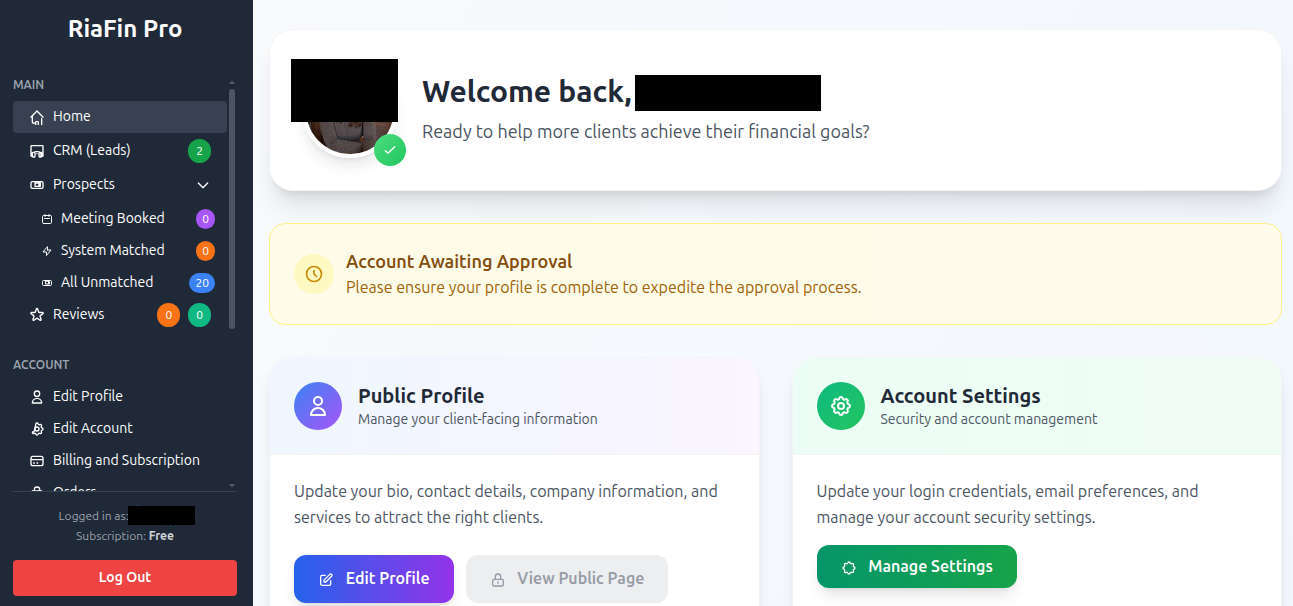
Key Metrics Counts
The dashboard displays key metrics counts at a glance:
- Total Prospects: Number of unmatched, system-matched, and meeting-booked prospects (future leads) available for your purchase
- Active Leads: Number of leads (CRM) you've purchased and are currently working on
- Reviews: Number of reviews & ratings (both unapproved and approved) you've received from your existing customers
Quick Actions
From the dashboard you can quickly:
- View and update your public profile
- Update your account (such as email and password)
- Browse new unmatched prospects (not matched with you as an advisor but others)
- View system-matched leads (our AI based system matched you as an advisor)
- Check meeting-booked leads (system-matched prospects booked meeting with you)
- Access your CRM (manage all your purchased leads)
- View subscriptions and billing
- View Orders (leads puchases and any subscription upgrades)
- View Invoices (both leads purchases and your listing subscription)
Key Dashboard Features
1. Prospects Management
1. Unmatched Leads (/pro/dashboard/prospects)
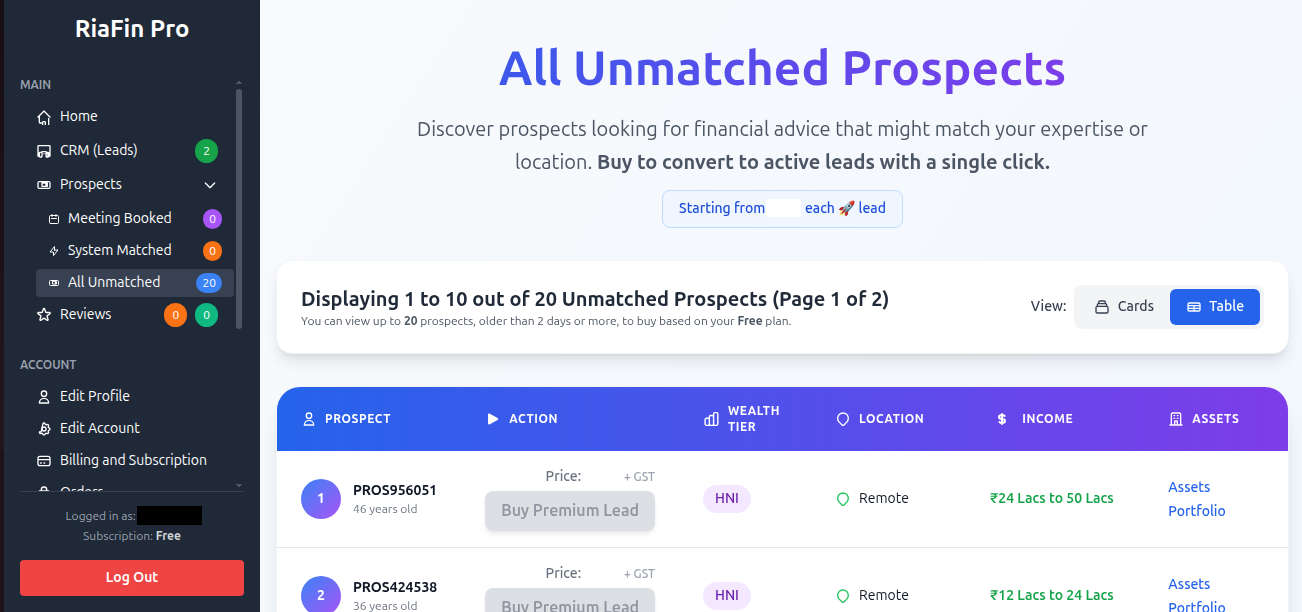
Browse and purchase unmatched prospects:
- View users who completed the questionnaire but not matched with you as an advisor
- View Prospects' details and then purchase as leads
- Can be purchased immediately
2. System-Matched Leads (/pro/dashboard/system_matched_prospects)
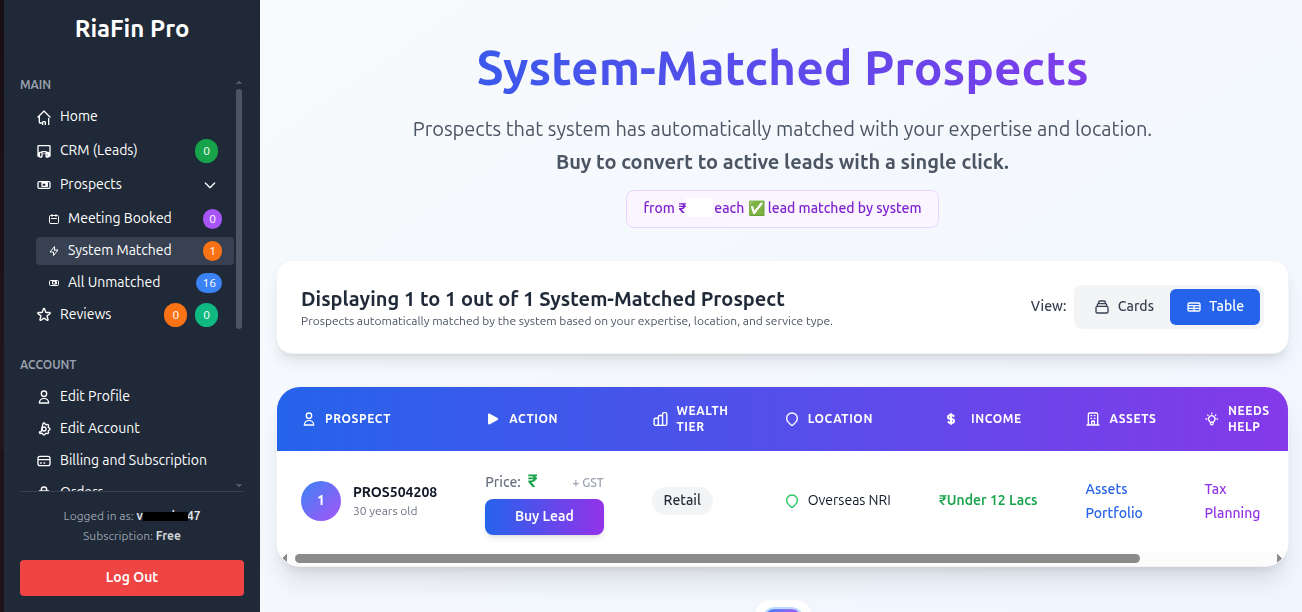
Browse and purchase system-matched prospects:
- Questionnaires system matched with you based on your profile and expertise
- Note: These system-matched prospects have a 72-hour cooling period before you can purchase as a lead
- These are High-intent leads actively seeking advisors
3. Meeting-Booked Leads (/pro/dashboard/meeting_booked_prospects)
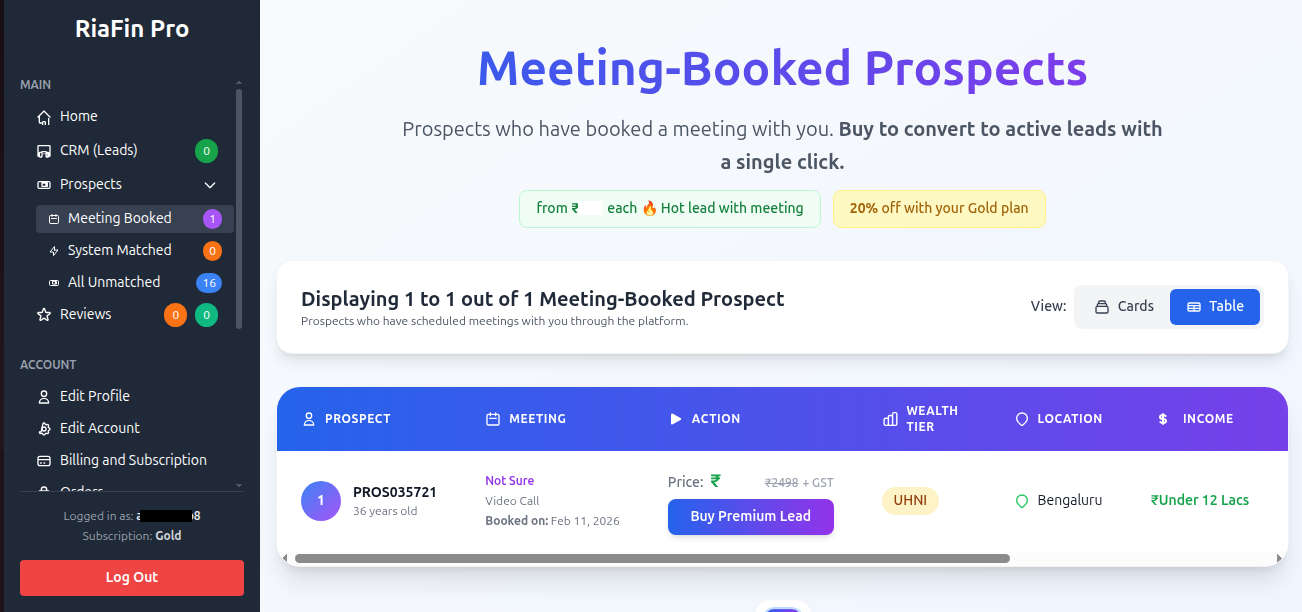
Browse and purchase meeting-booked prospects:
- System-matched prospects who have booked meetings with you from their dashboard
- These are premium Ready-to-convert high-intent leads
- Can be purchased immediately
2. CRM (/pro/dashboard/leads)
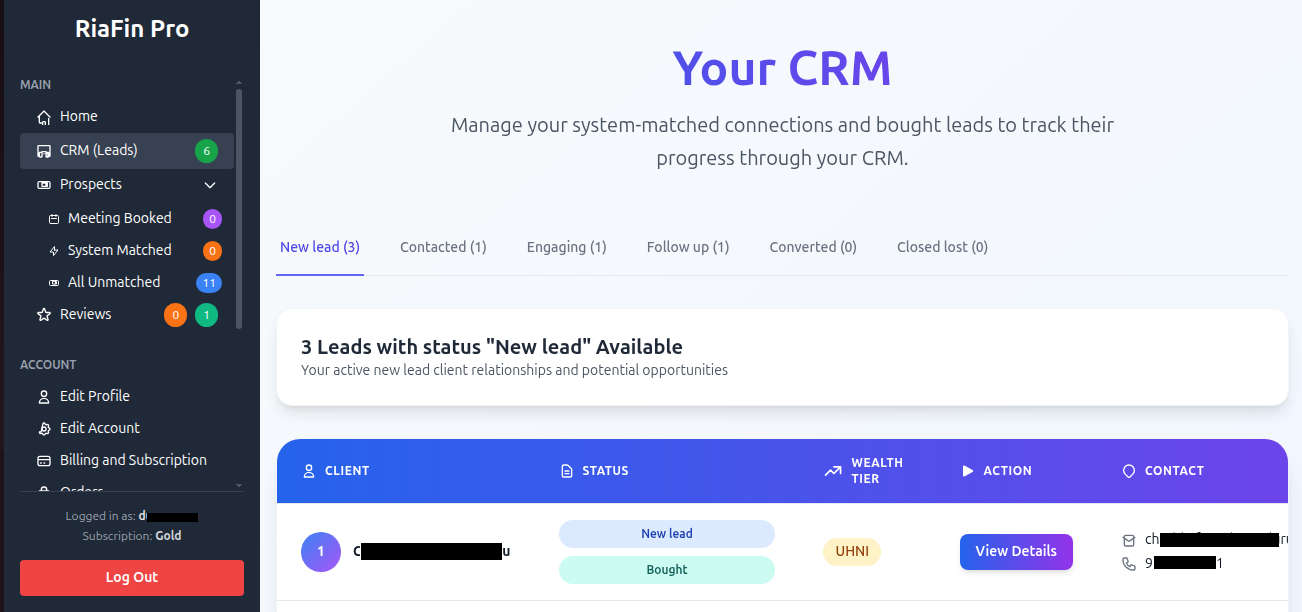
Manage your client relationships:
- Track lead status (New Lead, Contacted, Engaging, Follow Up, Converted, Closed Lost)
- Add notes and comments
3. Reviews (/pro/dashboard/reviews)
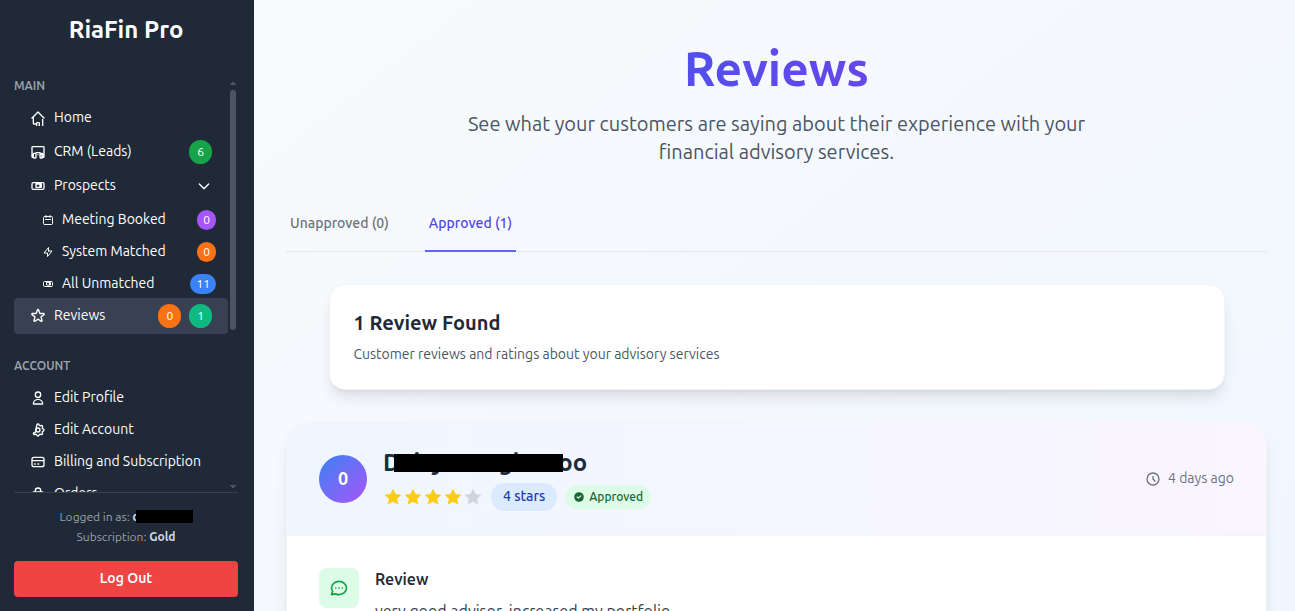
Manage client feedback:
- View reviews from clients
- Approve reviews
4. Profile (/pro/dashboard/advisor/edit)
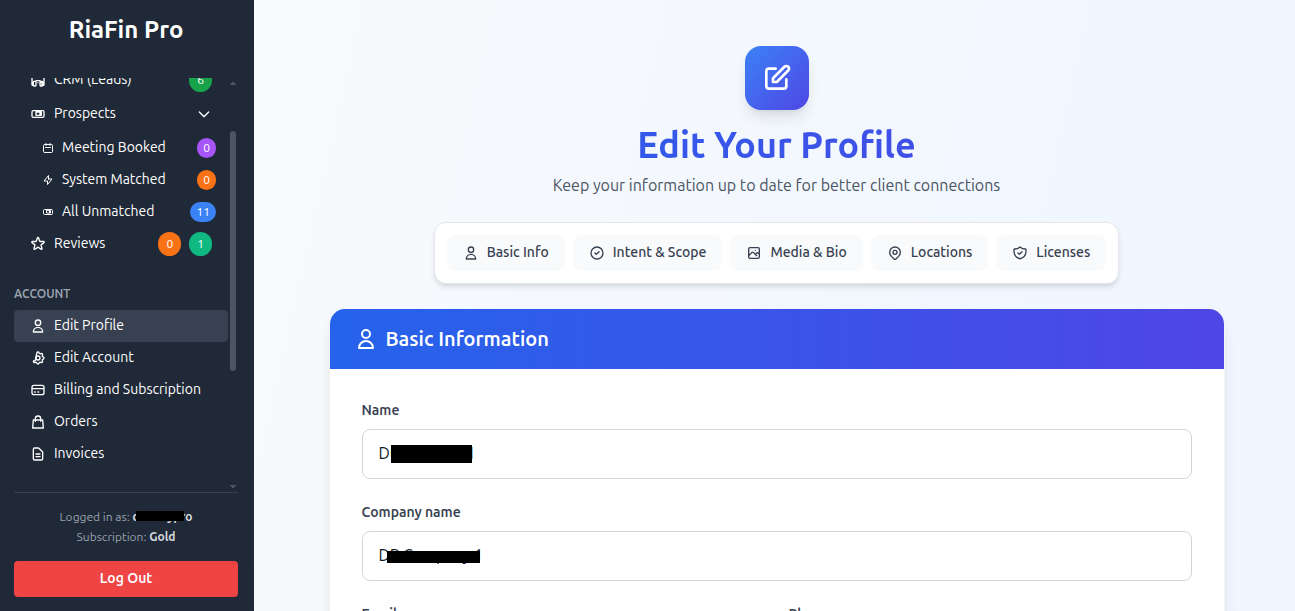
Update your public profile:
- Edit your bio and credentials
- Update specializations
- Add your SEBI/FPSB/AMFI/IRDA/Others registration details
5. Billing & Subscription (/pro/dashboard/billing)
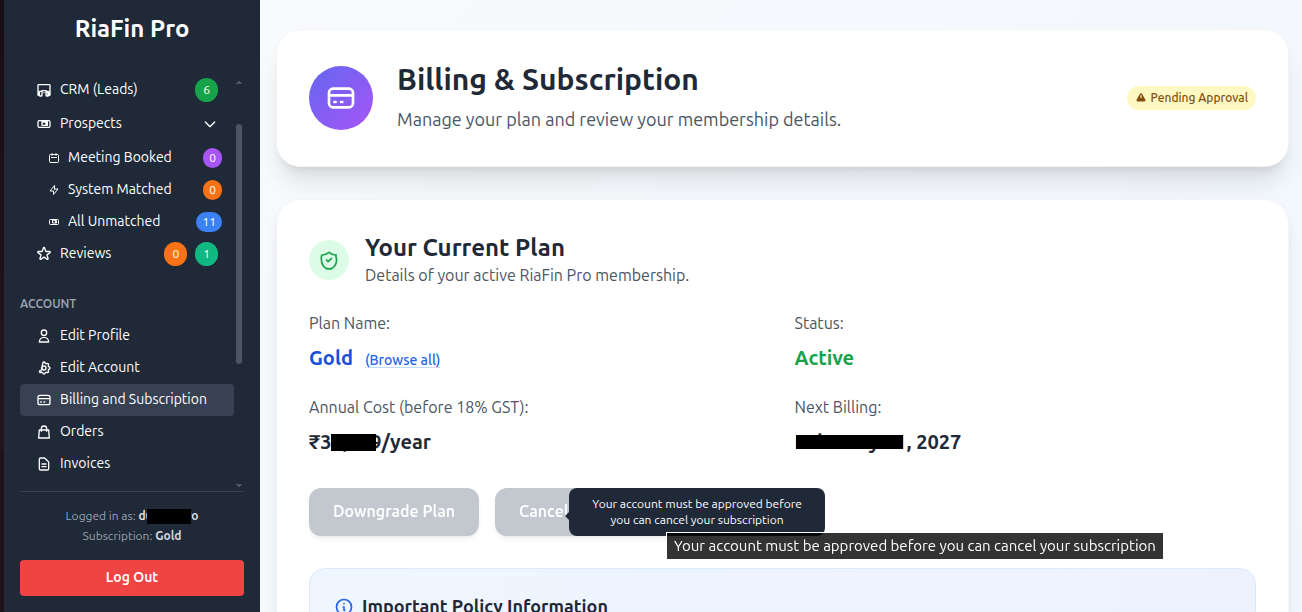
Manage your subscription:
- View current plan (Free, Bronze, Silver, Gold)
- Upgrade, downgrade, or cancel
6. Orders (/pro/dashboard/orders)
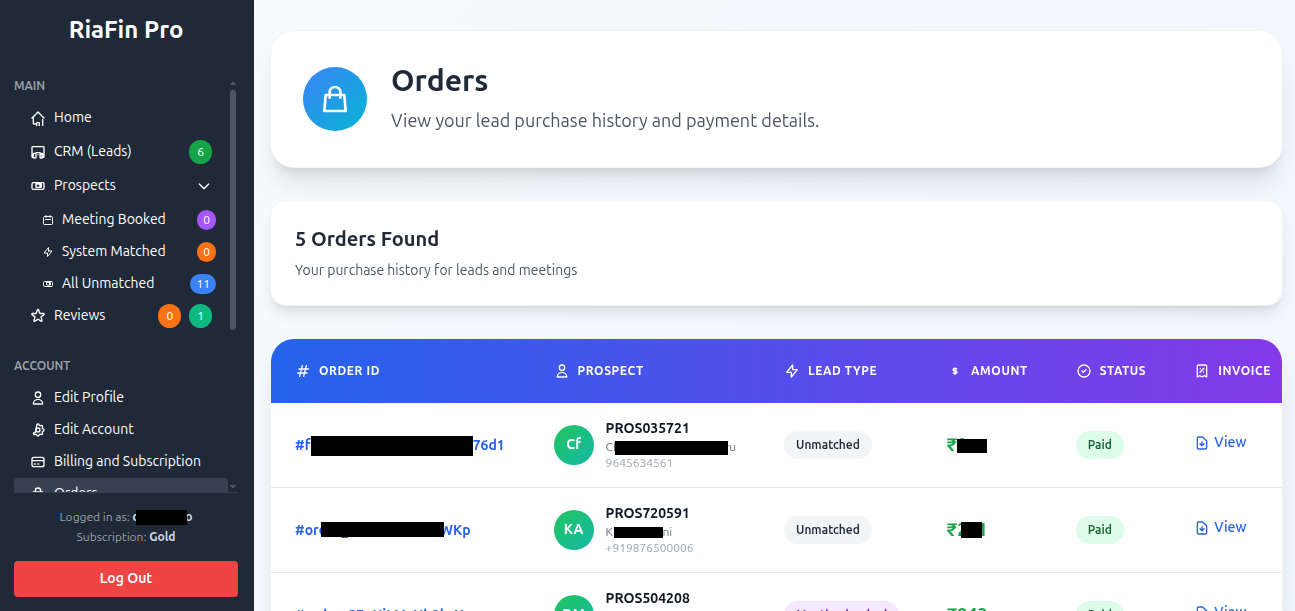
Track purchase history:
- View all lead purchases
- Check payment status
- Verify transaction details
7. Invoices (/pro/dashboard/invoices)
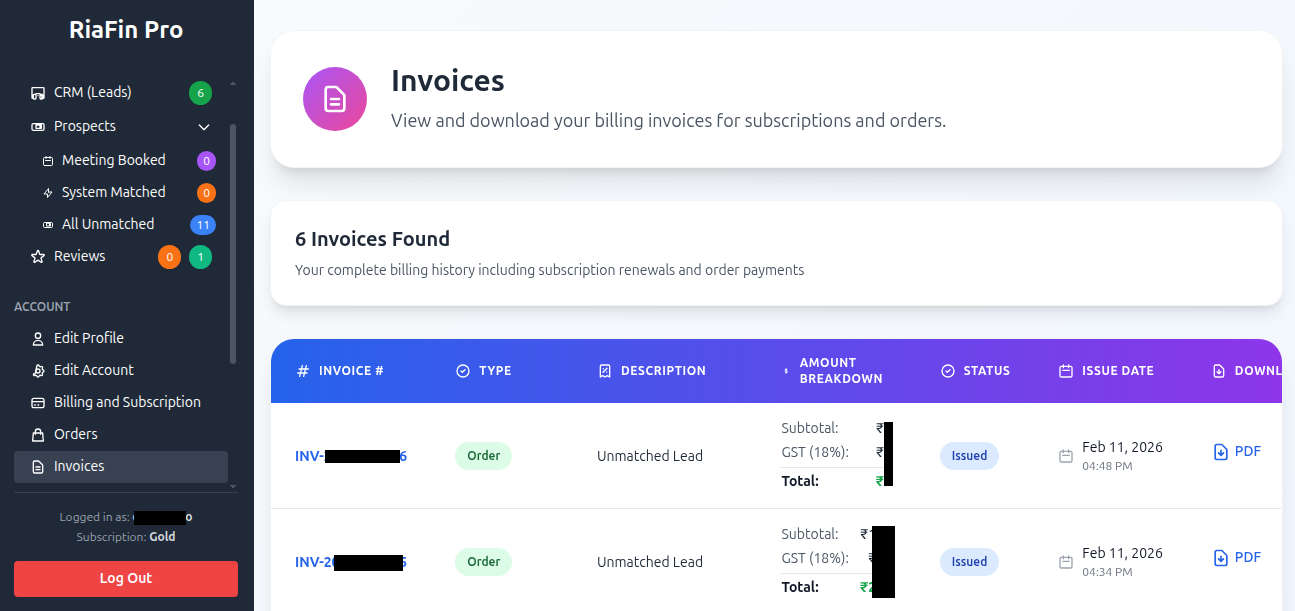
Access billing documents:
- Download invoices for your records for both subscription and leads
- View payment history
Navigation
Top Navigation
- Home: Dashboard overview
- Leads: CRM management
- Prospects: Browse and purchase leads
- Reviews: Client reviews
- Profile: Your public profile
- Billing: Subscription and payments
- Orders: Purchase history
- Invoices: Billing documents
Sidebar Menu
Quick access to all dashboard sections from the left sidebar.
Best Practices
Daily Workflow
- Morning: Check dashboard for new leads
- Follow-up: Contact yesterday's leads
- Meetings: Review scheduled meetings
- Evening: Update CRM notes
Lead Management
- Respond to new leads within 24 hours
- Use the CRM to track conversations
- Schedule follow-ups systematically
- Track lead status accurately
Getting Help
Support Channels
- Email: prosupport@riafin.com
- In-app Help: Look for help icons on each page
- FAQ: Check the advisor FAQ section